
We’ve all been there. You find the perfect recipe on a Tuesday night, close the tab, and by Thursday the website’s name has vanished from your head. You type half-remembered words into a search engine, scroll, sigh, and give up. That small sting of a lost page is exactly why browser bookmarks exist — and why learning how to use browser bookmarks well pays you back every single day.
A bookmark is just a saved shortcut to a web page. One click brings the page back instantly: no searching, no guessing, no retracing your steps. It sounds almost too basic to write a guide about. But most people either never touch the feature or use it so carelessly that their saved list turns into a graveyard of forgotten links.
This guide is the middle path. You’ll learn to save pages in two seconds, find them again without panic, keep them organized with almost no effort, and carry them with you from laptop to phone. Nothing technical, nothing to memorize — just a few small habits that quietly upgrade your whole time online.
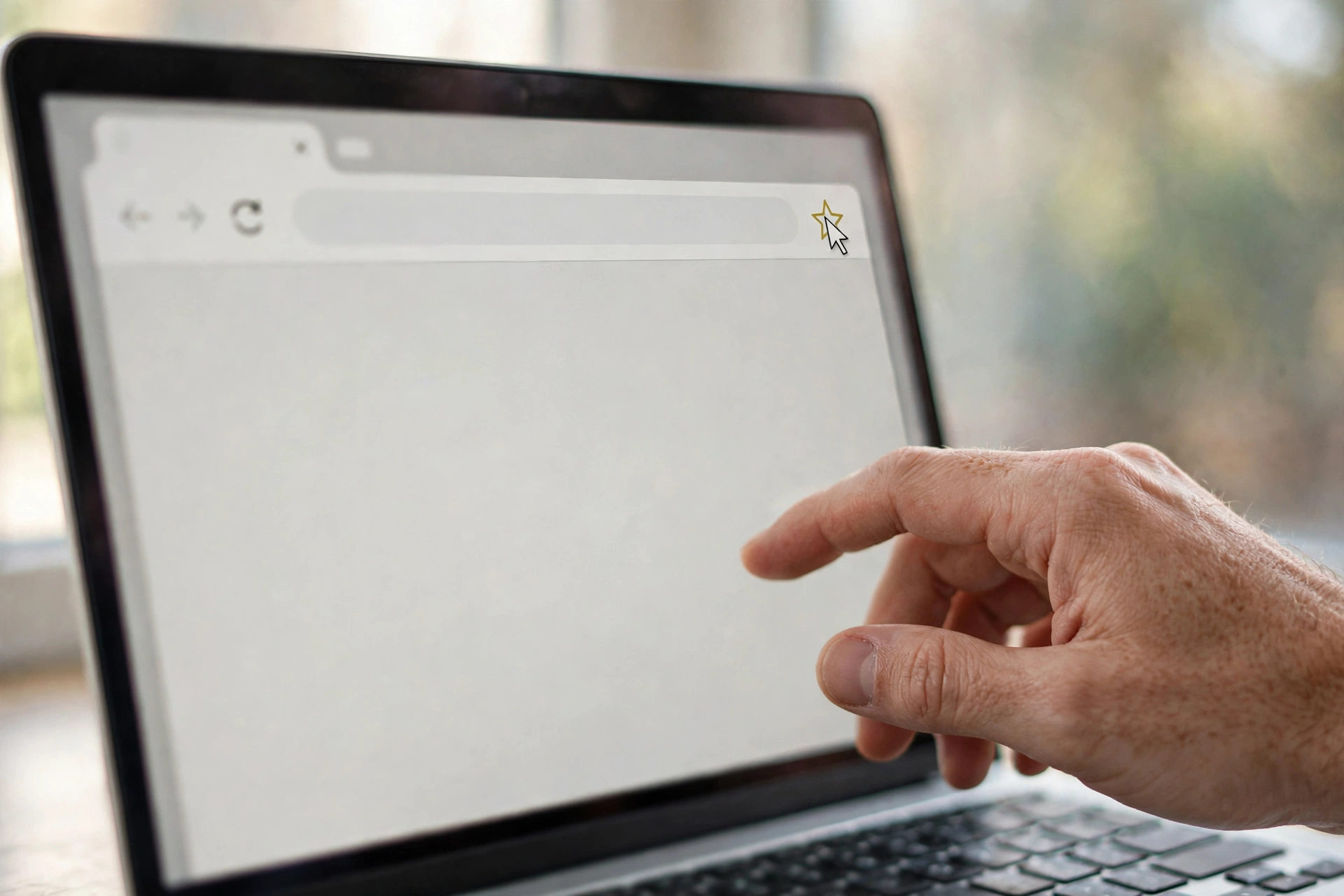
That little star does the heavy lifting
Glance at the top of your browser window, near the address bar. See the small star outline sitting there? That’s the whole game. Open any page worth keeping — an article, a shop, a train timetable — and click that star. It fills in, sometimes with a cheerful little animation, and the page is saved.
Your browser will usually ask where to put it. When you’re starting out, accept the default and move on; organizing comes later. The habit matters far more than the filing system. Each time you catch yourself thinking “I might want this later,” tap the star before you close the tab. Two seconds now beats twenty minutes of frustrated searching next week.
On a phone or tablet, the star hides inside the browser’s menu — those three dots or lines — under an option like “Bookmark” or “Add to bookmarks.” Same idea, one extra tap. Worth learning, since a good share of our lost pages slip away on mobile.
A keyboard shortcut exists too — Ctrl+D on Windows, Cmd+D on a Mac — but the visible star is friendlier while you’re learning.
So where did it go?
Saving a bookmark means nothing if you can’t find it again, and this is where beginners quietly give up. Don’t. Your saved pages live in the bookmarks list, usually tucked inside the browser’s main menu under “Bookmarks.” Open it, and everything you’ve saved is there, waiting.
Click an entry and the page opens. Right-click it — or long-press on a touch screen — and you can rename it, delete it, or move it somewhere tidier. Renaming deserves special attention: browsers save the page’s original title, which is sometimes a rambling sentence stuffed with site branding. Shorten it to something your future self will recognize. “Lentil soup — weeknight” will mean something in six months; the site’s full headline won’t.
Every browser also has a bookmarks manager: a page showing your whole collection with a search box. Type two or three words you remember and the bookmark surfaces. Just knowing it exists takes the fear out of saving freely.
Your everyday pages deserve front-row seats
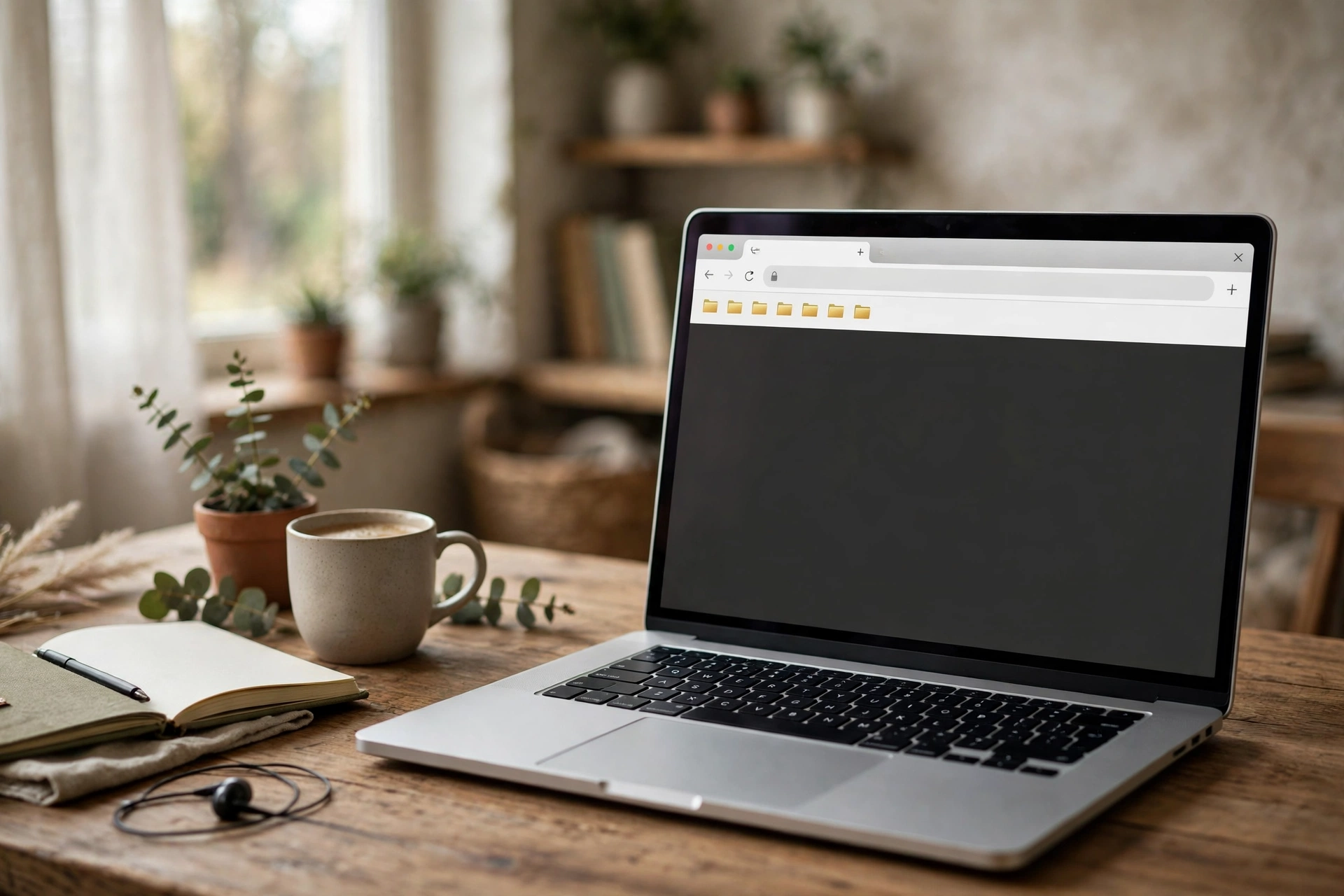
The bookmarks bar is the slim strip that can sit directly under the address bar, keeping your most-visited pages a single click away. Some browsers hide it by default; look in the settings or appearance options for “show bookmarks bar” and switch it on. It takes up a sliver of space and earns it back immediately.
Treat this strip as prime real estate. It holds the handful of pages you open daily: your email, the news site you check each morning, the bank, the forum you can’t quit. Everything else can live one click deeper in the full bookmarks list. When a page graduates to daily use, drag it onto the bar; when it fades from your routine, drag it off.
A tidy trick for the bar: rename each bookmark to a single short word, or clear the name entirely and leave just the site’s little icon. You’ll fit far more in, and you’ll still recognize every one at a glance. Icons plus one-word labels turn a cramped strip into a clean launchpad.
Folders turn saving into keeping
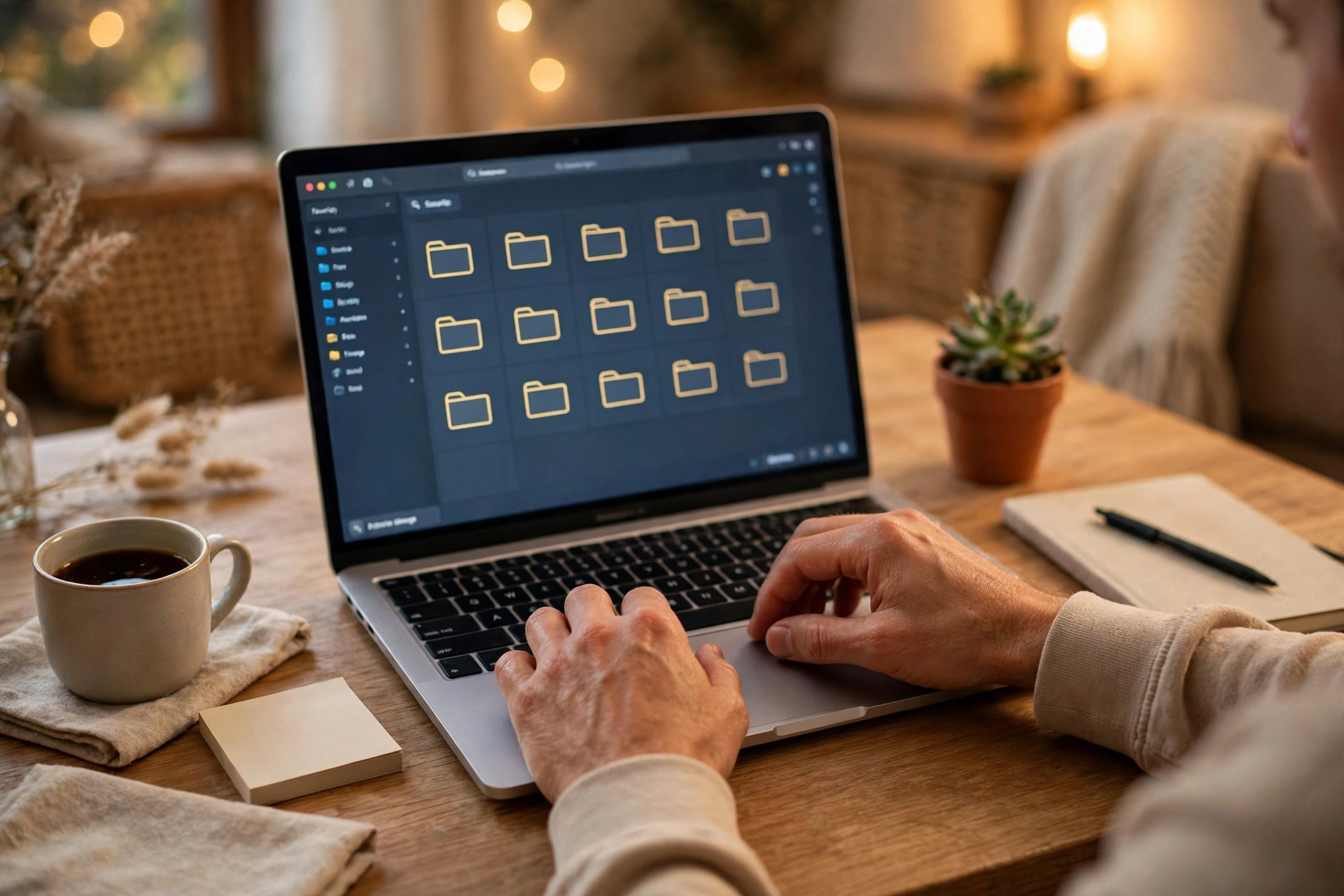
Here is where beginners either level up or stall. A flat list of two hundred bookmarks is barely better than no list at all — you stop trusting it, then you stop using it. Folders fix that. Think of them as drawers: one for recipes, one for travel ideas, one for work, one for “read later.”
Making a folder takes seconds. In the bookmarks list or manager, look for an “add new folder” option, give it a plain name, and drag bookmarks into it. From then on, when you save a page, the little save dialog lets you pick the folder right there. Choosing the folder at save time — that one small decision — is the habit that keeps everything findable months later.
Keep the count small to begin with. Five or six broad folders beat thirty fiddly ones you’ll never maintain. A folder can always be split later if it outgrows itself, and folders can sit inside other folders when a topic gets big. Don’t be precious about perfect filing, either: a bookmark in the slightly wrong folder is still infinitely easier to find than one that was never saved.
One more quiet superpower: right-click a folder and choose “open all” to launch every bookmark inside at once — your Monday-morning routine in a single move.
Clean house once in a while
Bookmarks rot. Shops close, articles get taken down, hobbies change. Every few months, spend ten unhurried minutes in the bookmarks manager and delete what’s dead. Broken links usually announce themselves with an error when clicked; they can go. So can the three articles you saved “for later” two years ago and never opened. Letting go feels good.
While you’re there, merge duplicates. Saving the same page twice is easy when months pass between saves, and duplicates make a list feel longer than it is. A slow scroll through each folder catches most of them.
Nobody loves this chore, which is exactly why doing it little and often wins. Ten minutes with a cup of tea, twice a year, keeps the whole system trustworthy — and a bookmarks collection you trust is one you’ll actually use.
Take them with you
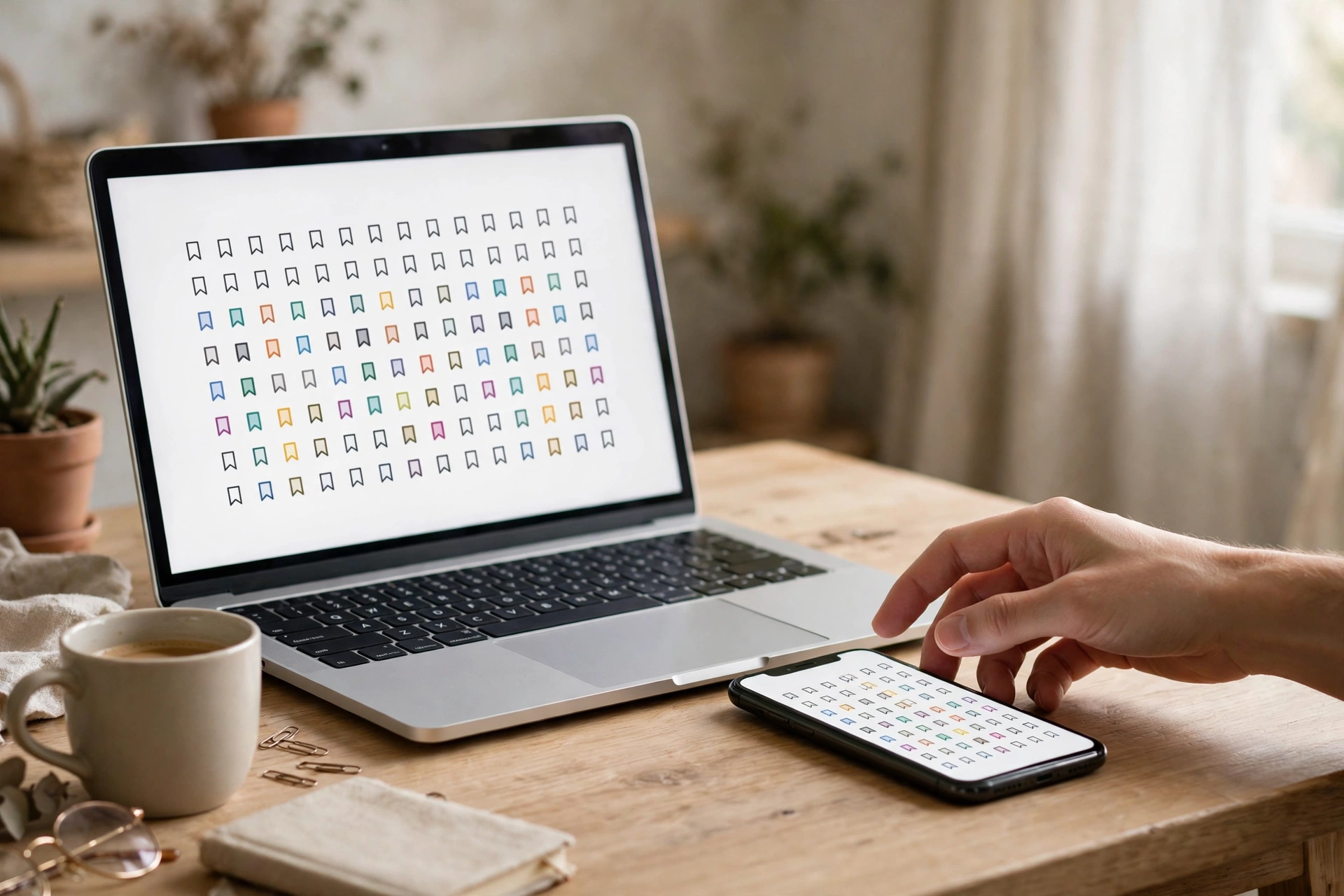
Bookmarks don’t have to live on one computer. Most browsers offer syncing: sign in to your browser account on your phone, your laptop, and any other machine you use, and the same bookmarks appear everywhere. Save a restaurant page on your laptop at lunch; open it from your phone that evening. It feels like a small magic trick the first time it happens.
Syncing usually carries more than bookmarks — open tabs and saved passwords often travel too — but the settings let you choose exactly what syncs. One caution: on a shared or public computer, skip signing in, or use a separate browser profile, so your personal bookmarks stay personal.
Switching browsers? The bookmarks manager has “export” and “import” options, so your whole collection moves across in under a minute.
What Beginners Usually Ask
Is there a limit to how many bookmarks I can save?
For everyday purposes, no — browsers handle thousands without complaint. The practical limit is your own patience: a list you can’t comfortably scan is your cue to organize or prune, not to stop saving.
Can I lose my bookmarks?
It’s rare — usually a corrupted browser profile, or clearing browsing data without realizing bookmarks were included. If your collection matters, switch on sync or export a backup from the manager now and then. Cheap insurance.
Bookmarks versus favorites versus reading list — what’s the difference?
“Favorites” is simply another name for bookmarks; some browsers use that word instead. A reading list is slightly different: it’s a waiting room for pages you intend to read once and then discard, like long articles for the weekend. Bookmarks are for keeps.
Do bookmarks slow down my browser?
Not in any way you’d notice — a bookmark is a tiny text entry. Thousands weigh less than a single photo. If your browser feels sluggish, too many open tabs is the usual suspect.
Can other people see my bookmarks?
Only if they use your browser while you’re signed in. On your own devices they’re private by default. The exception is a shared computer — which is why a separate browser profile, or simply not signing in there, is the safe move.
Give It a Week and See
None of this needs to happen today. For the next week, just use the star: bookmark anything you’d hate to lose and accept the default location. Then, when the list starts feeling messy — it will, and that’s normal — create your first three folders and sort things in.
That’s the entire method. Save generously, file loosely, tidy occasionally. A year from now you’ll own a personal library of the web’s best bits, built one star-click at a time — and you’ll wonder how you ever browsed without it.