
Banking on your phone feels a little strange at first. There is your money, sitting behind a few taps on a small screen, and some part of your brain keeps whispering that it can’t possibly be safe. That worry is normal — almost everyone feels it when they start, and a bit of caution is exactly what makes online banking safe for beginners. This checklist turns that caution into a handful of simple habits, none of which need technical skill. Follow them, and you can bank from your sofa with confidence instead of crossing your fingers.
Only ever bank inside the real app
Everything starts here, and it is the easiest habit on this list. Your bank has an official app — get it from your phone’s built-in app store by searching for your bank’s name, and check that the publisher name matches before downloading. Scammers sometimes build lookalike apps with almost-identical names, so one extra second of checking saves a world of trouble.
Never install a banking app from a link in a text or email, even if the message looks official. If a message tells you to download something, ignore the link and open your app store yourself. Keep the app on your home screen so you always reach it the same way — and if you ever spot two versions of it, delete the one whose publisher name doesn’t match.
Your password is the front door
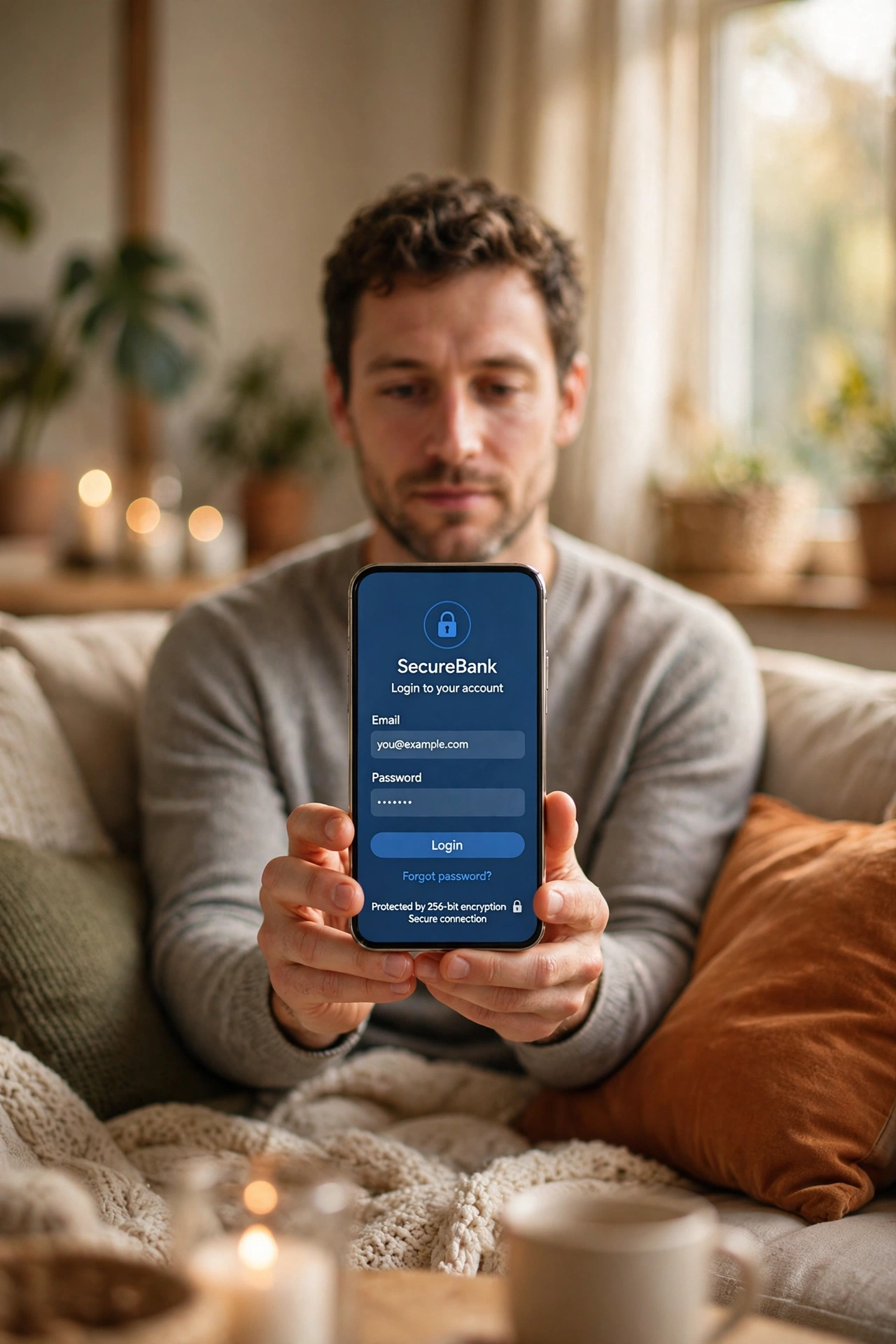
A password does the same job online as a lock does at home. Make it a long one — a full sentence you can remember works better than a short jumble of symbols. Something like “my dog max loves rainy walks” is far harder to crack than “Max123!” and much easier to type without writing it down.
The golden rule: don’t reuse that password anywhere else. If one website leaks its password list and you used the same one for your bank, the thief holds a key to your money too. Each important account deserves its own password, and a password manager — a small app that remembers them for you — means you only memorize one master password.
Your banking PIN is separate and just as precious. Memorize it, never keep it in your phone’s notes, and never share it with anyone who asks — including someone who claims to be from the bank. Your bank already knows who you are; it will never need your PIN from you.

Lock the phone itself
Your banking app has its own login, but your phone also needs one. Set a PIN, pattern, fingerprint, or face recognition — whichever your phone offers. Without it, anyone who picks up your phone gets a free run at everything, including your banking app. Keep the auto-lock setting on and short, a minute or two.
This sounds obvious, yet plenty of people skip it because typing a PIN feels like a chore. Think of it as closing the front door behind you — ten seconds of tapping is a small price for the peace of mind.
That “bank” text is probably not your bank
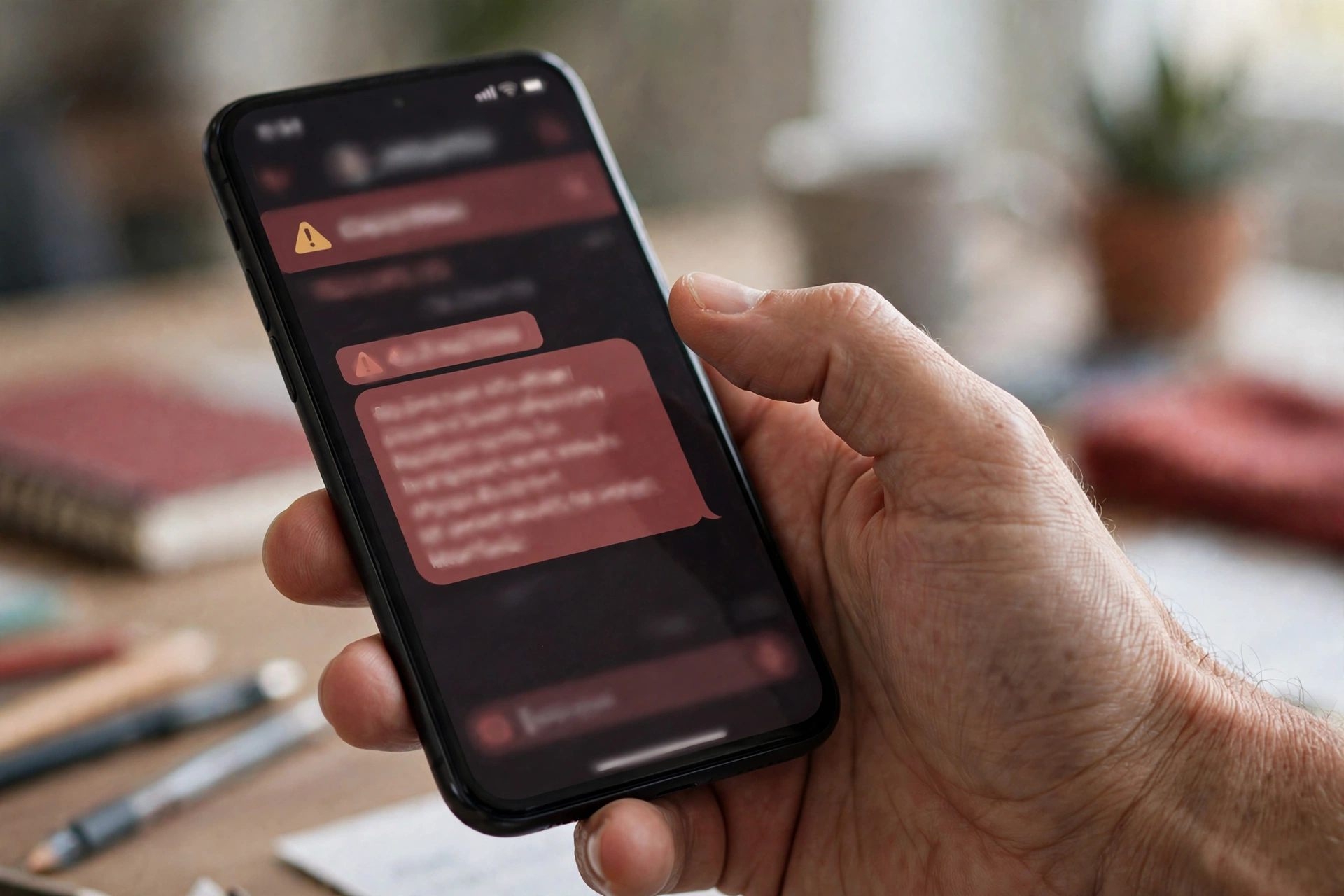
Here is the trick scammers use most often. You get a text or call claiming your account is frozen, or there’s suspicious activity, or a delivery failed — always something urgent. It asks you to tap a link, “verify” your details, or move your money somewhere safe. It feels real because it is designed to make you panic before you think.
The rule is simple: never tap the link, never call back the number in the message. If you’re worried, open your bank’s official app yourself — the one from your home screen — and check whether anything is actually wrong. In almost every case you’ll find nothing there, which tells you everything.
Real banks don’t ask for your full password, your PIN, or a one-time code over the phone or by text. If a caller asks for any of those, hang up politely — then call the number printed on the back of your card. That one habit, calling them instead of trusting the number that called you, stops most phone scams cold.
Café Wi-Fi can wait
Free Wi-Fi in cafés, airports, and hotels is convenient, but it is a shared network — your connection passes through equipment you don’t control. For anything involving money, that extra risk isn’t worth it.
Do your banking at home on your own Wi-Fi, or use your phone’s mobile data when you’re out. If you’re travelling and must check something on a public network, keep it to a quick balance glance and save transfers for later. Your money can wait twenty minutes until you’re somewhere private.
Make friends with your statements
Every bank’s app shows your recent transactions. Scan them once a week, even just for a minute over your morning coffee. You’re looking for anything you don’t recognize — a shop you’ve never visited, a charge that feels off.
This works because you know your own spending better than any software does. Fraud often starts with a tiny test charge, just to see whether anyone notices — and a weekly glance is how you notice. Jot down anything odd and ask the bank about it. Many banks can also send a notification each time money leaves your account; switching those on means you’ll spot trouble within seconds instead of days.
Two steps beat one
You may have heard of “two-factor authentication” and filed it under things too technical to bother with. It isn’t. It just means your bank checks two things instead of one before letting you in — usually your password, plus a short code sent to your phone.
Switch it on in your banking app’s security settings. From then on, logging in from a new device asks for that code too, so a thief who guesses your password still can’t get in without your phone. That second step takes seconds and blocks a huge share of attacks.
Keep the app — and the phone — updated
Those update notifications are easy to ignore. But updates to your banking app and your phone’s system often fix security holes that scammers know about — running an old version leaves those holes open. Turn on automatic updates for the banking app, and install phone system updates within a day or two of them appearing. You don’t need to know what each update does; staying current closes doors you can’t see.
Something looks off? Slow down, then call
Sooner or later, most people see something that makes their stomach drop: an unfamiliar charge, a login alert they didn’t cause. Your first move should be to pause. Scammers rely on panic; taking thirty seconds to breathe ruins their plan.
Next, open your bank’s app and look for yourself. Then call the bank on the official number — the one on the back of your card, on your paper statements, or on the bank’s website that you typed in yourself. They deal with this every day; they can check your account, block a card, and reverse anything that shouldn’t have happened.
Acting fast matters here. The sooner your bank knows about a problem, the easier it is to contain. There is no shame in calling about something that turns out to be nothing — you’d rather ask about a false alarm than miss a real one.
What beginners usually ask before banking on a phone
Is banking on my phone safer than doing it on a computer? For most people, yes. Phones have built-in security that blocks dodgy downloads, and banking apps are designed to be harder to tamper with than a web browser. The weak point is almost always the person, not the device — which is why the habits on this list matter more than the gadget.
What if I lose my phone? You can usually lock or erase a lost phone remotely from another device, and your bank’s app stays protected behind its own password. Call your bank and let them know the phone is gone; they can add extra monitoring to your account. This is one more reason to lock the phone itself.
Should I let the app remember my password? Most banking apps offer a “remember me” option for convenience, but skipping it is safer. Typing your password each time keeps your account behind your memory instead of your phone’s storage.
Start small, stay calm, check often
Nobody masters all of this in one afternoon, and you don’t have to. Pick one habit today — maybe locking your phone, maybe scanning your transactions this weekend — and let it become automatic. Then add the next. Safe banking isn’t a trait you either have or don’t; it’s a short list of habits that get easier every week.
The encouraging part: scammers go after easy targets, and everything on this checklist makes you a hard one. Open the app yourself, guard your passwords, pause before you tap, and call the number on your card when in doubt. That’s online banking safety for beginners in one paragraph — the rest is just practice.